I want to move all the lines at once 2 spaces to the right, a kind of new alignment to the right, but not as much alignment as when I press the tab key.
-
I want to move all the lines at once 2 spaces to the right, a kind of new alignment to the right, but not as much alignment as when I press the tab key.
So, I have this in notepad++
useEffect(() => {
// Simulate authentication verification
const token = localStorage.getItem('token');
if (token) {
setUser({
id: 1,
name: 'Rody Nam',
email: 'yes@tipbsrssl.com',
role: 'admin',
company_name: 'DAYU'
});
setIsAuthenticated(true);
}
setLoading(false);
}, []);
I want to move all lines at once 2 spaces to the right, a kind of new right alignment, but not as big an alignment as when I press the tab key
I selected Press Alt + Left mouse click and drag down , then I put Shift + Right Arrow to highlight the beginning of all lines with a large (thin) base from top to bottom. If I then press Shift+Tab, it moves all lines one space to the left. But what if I want to move all the spaces to the right?
But what if I want to move all spaces to the right, only 2 spaces?
of course, I can make regex:
FIND: ^
Replace by: \x20\x20
OR
FIND: ^
Replace by: (Leave 2 empty spaces)
But I want to use columb editor. Alt+Click Selector, then Shift+Space
But doesn’t work.
-
@Neculai-I-Fantanaru
Alt+Left Click but not select the entire area, but only starting point of all lines. Will be a horizontal line
Than press Space -
To expand on the explanation, for a small number of lines, put the caret in column 1 of line 1. Press Shift+Alt+DownArrow multiple times, enough so that a “skinny but tall caret” appears before the column 1 data in all lines, to wit:
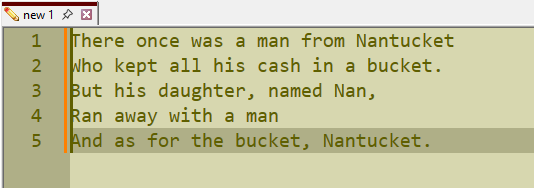
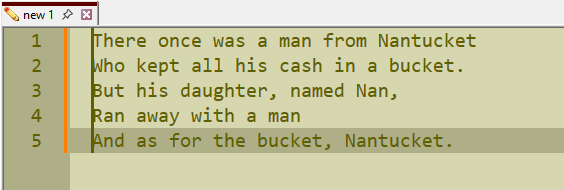
Then press Space two times, to obtain:

Hello! It looks like you're interested in this conversation, but you don't have an account yet.
Getting fed up of having to scroll through the same posts each visit? When you register for an account, you'll always come back to exactly where you were before, and choose to be notified of new replies (either via email, or push notification). You'll also be able to save bookmarks and upvote posts to show your appreciation to other community members.
With your input, this post could be even better 💗
Register Login