Search++: A work in progress
-
should lines in which null matches occur still be bookmarked, even though they can’t be marked?
I would say a weak Yes. I probably made a mistake with a null match expression, and a bookmark next to an unmarked line is the flag for me to notice that useless result. The Found xxx matches (zz marked, yy null) would have me wondering where those yy lines are, if not for the bookmark.
-
Hi, @coises, @peterjones, @astewart77 and All,
As suggested by @astewart77, I also support the idea of adding a bookmark when searching for lines that match regular expressions of form :
^$^$.[0}
or similar ones !
BR
guy038
-
Search++ version 0.7.0.1 is a test of what is hopefully improved bookmark handling. Help and changelog have not been updated.
@guy038, @peterjones, @astewart77 and anyone else interested, please let me know if this lets you configure bookmark handling to your liking, and anything you would like to be different.
The Bookmark lines when marking text (Shift: configure) item on the Tools menu can be clicked to toggle whether marking adds bookmarks, just like before. Shift-clicking (or Ctrl+Shift+B) opens this dialog (defaults shown selected):
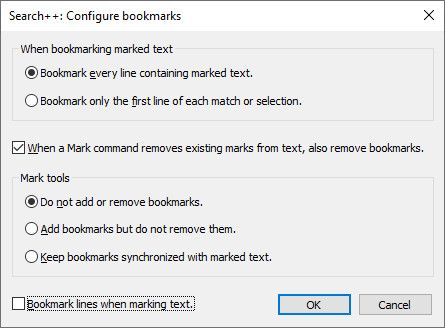
The Bookmark lines when marking text option at the bottom right is identical to the menu setting; it’s just in this dialog so you don’t have to open the menu a second time to see or change it. The other options in this dialog are only relevant when this box is checked; unchecking it, or the equivalent menu setting, keeps Search++ from doing anything with bookmarks, with one exception: the new Synchronize bookmarks to marked text command.
The first pair of radio buttons choose whether you want marking to put a bookmark on every marked line or only on the first line of a match (or of a selection, or of each part of a multiple selection, when you mark selections).
When a Mark command removes existing marks from text, also remove bookmarks applies in two contexts, and only when Bookmark lines when marking text is in effect:
-
When Settings | Always unmark all text before Mark command is checked, each Mark command “starts over,” removing any existing marks before it begins marking new matches. If this box is checked (the default), bookmarks are also cleared.
-
Regardless of the Always unmark… setting, Mark in Marked Text always removes existing marks before it begins marking new text (otherwise it could not do anything, since all the new marks would be within existing marks). If this box is checked (the default), bookmarks are also cleared.
The three choices under Mark tools apply to most commands on the Tools menu (exceptions noted below):
-
Do not add or remove bookmarks means Tools menu commands that mark or unmark text don’t do anything with bookmarks, even if Bookmark lines when marking text is checked.
-
Add bookmarks but do not remove them means just what it says: tools commands that mark text also add bookmarks (in accordance with the Bookmark every line or Bookmark only the first policy set in the top section of the dialog), but tools commands never remove them: you decide when to remove bookmarks.
-
Keep bookmarks synchronized with marked text means tools commands that mark or unmark text maintain bookmarks so that they are consistent with marked text in accordance with the Bookmark every line or Bookmark only the first policy set in the top section of the dialog.
Special cases:
-
Invert marked text does not add new markers if Add bookmarks but do not remove them is in effect (the results would be useless). If Keep bookmarks synchronized with marked text is in effect, the policy in the top section is followed.
-
When Bookmark lines when marking text is in effect, the dialog raised in response to Remove marks from multiple documents… contains a checkbox that determines whether or not bookmarks are cleared. The Mark tools setting on the Configure bookmarks dialog is ignored. When Bookmark lines when marking text is not in effect, the dialog does not offer the option to clear bookmarks.
-
The new Synchronize bookmarks to marked text command applies the policy selected for Bookmark every line containing marked text or Bookmark only the first line of each match or selection regardless of any other settings, including Bookmark lines when marking text. Since the locations of individual matches or selections before they were marked is unknown, this command treats each contiguous span of marked text as a single match/selection if Bookmark only the first line of each match or selection is in effect.
Also in this test release:
-
Some changes to make sure tools commands that would be disabled on the menu don’t do anything when run from a keyboard combination.
-
Leave bookmarks alone when converting selection to marks (Settings | Convert selections to marked text when beginning a default stepwise search) and when removing marks on closing the non-docking dialog (Settings | Unmark all text when closing the search dialog), regardless of any settings.
-
Make right-click equivalent to Shift+click in menus.
-
-
Hi, @coises,
Thanks for this test version, regarding bookmark handling !
However, it’s now a quarter past midnight, in France. So, see you tomorrow !
BR
guy038
-
It works well for me. There are so many permutations, it takes a couple of readings. I look forward to your excellent updated help file.
The three choices under Mark tools apply to most commands on the Tools menu
I suggest that the “Mark tools” option group title be “Tools menu” to be clear that they are for menu commands and not Mark commands, but that may be covered in the help file. Otherwise, it looks like it contradicts the Mark option just above it.
-
It works well for me. There are so many permutations, it takes a couple of readings. I look forward to your excellent updated help file.
Part of the point of this test version is to figure out if I have too many options, or missing options, or if they can be better organized. There are more details and special cases than I’d like. At the moment this might represent more what could be done than what should be done.
I suggest that the “Mark tools” option group title be “Tools menu” to be clear that they are for menu commands and not Mark commands, but that may be covered in the help file. Otherwise, it looks like it contradicts the Mark option just above it.
That’s a good point. Somehow it should be clear that this section applies to commands from the Tools menu (and, of course, to their equivalent keyboard shortcuts), but not to the Mark command itself. And I wonder if it is clear that it doesn’t apply when Bookmark lines when marking text isn’t checked. Making this obvious at first glance is not going so well. (I know most people are never going to read the help.)
Would the top section be better labeled “Bookmark policy,” or is that just more confusing? Or am I silly to even have the top section, and whenever bookmarks are enabled it should just always be bookmark every line (like Notepad++ native Mark)?
I’m similarly unsure if Add bookmarks but do not remove them is pointless. Maybe no one would ever want that.
Another question is whether all this belongs in yet another box in the Settings dialog rather than in its own “Configure bookmarks” dialog. Settings is getting big, but if these are “set once and leave them alone” choices, that’s probably where they belong. (I don’t mean the Bookmark lines when marking text menu option; that stays on the menu.)
-
Part of the point of this test version is to figure out if I have too many options
I can see a use for all of the options you have now.
I’m similarly unsure if Add bookmarks but do not remove them is pointless. Maybe no one would ever want that.
That’s the one option I selected right away. I like to accumulate bookmarks over time.
-
Hello, @coises,
Sorry, I haven’t commented on your latest version yet. In the meantime, I replied to @Vitalii-dovgan regarding his own implementation of the
Find in Filesfeature.During that testing, I also included the
Search++plugin ( v0.7 ) and theMultiReplaceplugin.So I invite you to take a look at it : https://community.notepad-plus-plus.org/post/106389
As for your latest version, I won’t be able to review it thoroughly until tomorrow evening. So, I’ll probaly get back to you on Saturday instead !
BR
guy038
-
Hello, @coises and All,
FIRST test. Let’s suppose I chose these settings :
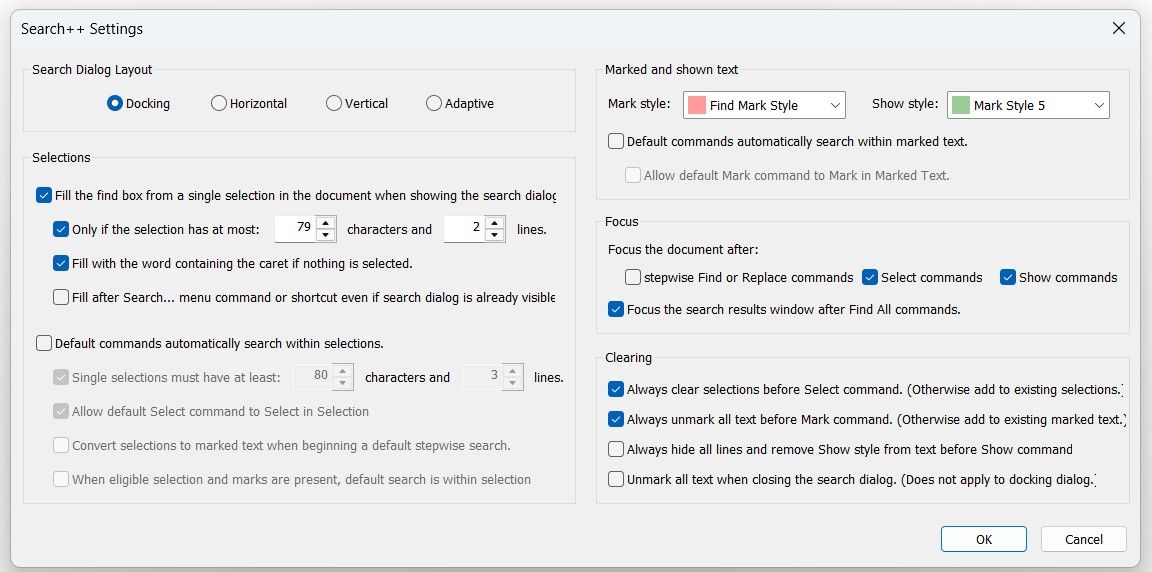
You note that I unchecked the two options
Default commands automatically search within selectionsandDefault commands automatically search within marked text. Thus, all default commands will always apply to whole documentNote also that I checked the two options
Always clear selections before Select command. (Otherwise add to existing selections.)and theAlways unmark all text before Mark command. (Otherwise add to existing marked text.)And that I decided to not bookmark the lines containing a marked text :
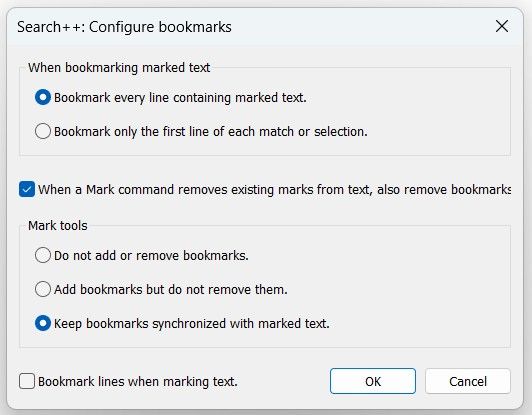
Then, starting with that text :
bla
blah
This is the test to do
bla
blah
test
bla
blah
I marked the two words
testwith theMarkcommand or theMkey. Now, given the above parameters, it just marked these two words.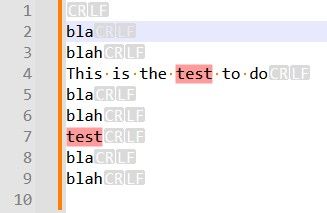
Then, using the
Synchronize bookmarks to marked textoption, ( Ctrl + Shift + Z ), it bookmarked the lines4and7=> OK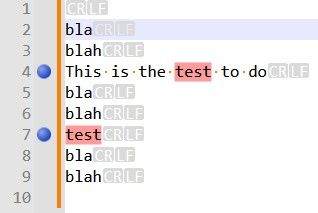
Now, using the
Remove marks from active documentoption ( Ctrl + Shift + R ), it deleted any marked text. However the bookmarks remain.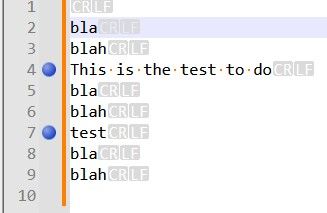
Is this behavior logical as you said that, even when the
Bookmark lines when marking textis not checked, theKeep bookmarks synchronized with marked textoption is still honored ?
SECOND test :
I now decided to check the
Bookmark lines when marking textoption ( Ctrl + B )Again, I marked the two words
testwith theMarkcommand or theMkey. Given the modified parameters, it correctly marked these two words and bookmarked the lines4and7Then using the
Remove marks and bookmarks from active documentoption ( Ctrl + Shift + R ), it deleted, both, marked text and bookmarks => OKRemark that this command is now labelled
Remove marks and bookmarks ..., unlikeRemove marks ...in the first test : nice !
THIRD test :
Again, I marked the two words with a
Markcommand. Thus, the snapshot below :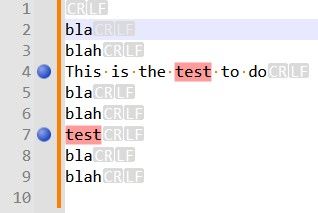
Then, I used the
Invert marked textoption ( Crl + Shift + I ). I got this snapshot :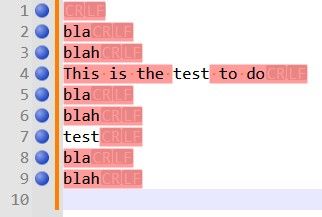
That’s not exactly what I expected !
I wanted to invert all the bookmarks, FIRST and SECONDLY, mark the contents of all the lines having a bookmark ! To do so, instead of searching the
testword, I needed to use the regex^((?!test).)*$and I chose again theMarkcommand to get this behavior. See below :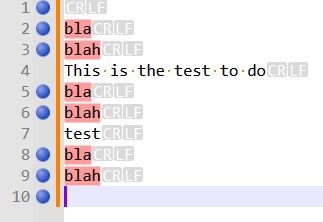
Note that this behavior is even better than with
N++. Indeed, if you decide to use theInvert bookmarksfeature, it swaps the bookmarks but leaves the marked text as is, in lines4and7!Of course, @coises, to imagine the negative regex
^((?!test).)*$compared to the positive regextestis easy enough with that simple example. However, how to quickly determine a correct negative regex vs a complicated positive regex ?
Of course, it’s obvious that your plugin is already very configurable and has numerous options ! So, may be, my request might not be reasonable !
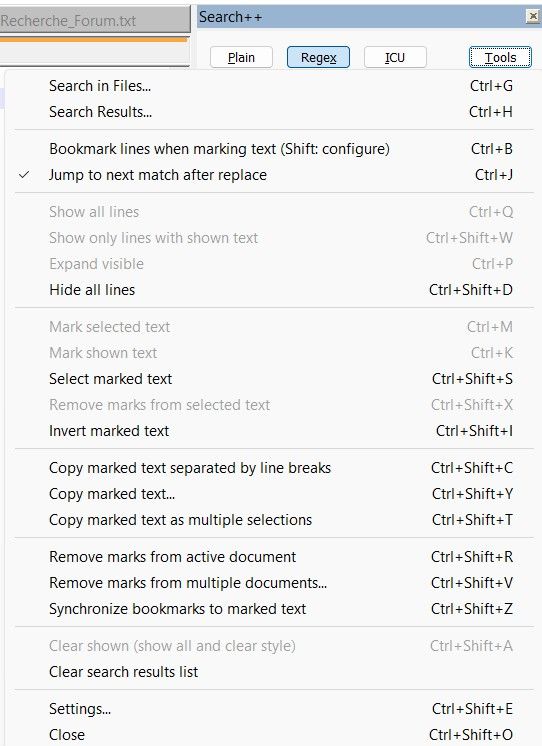
BTW; I really appreciate the right click on any option. For example :
-
First, you right-click on the
Hde all linesoption ( Ctrl + Shift + D ) option => Any line of current document is hidden -
Then, if you right-click on the
Show selected lines (Shift: All)option => All lines of current document are visible again !
Best Regards,
guy038
-
-
Thank you for taking a look at this!
Now, using the
Remove marks from active documentoption ( Ctrl + Shift + R ), it deleted any marked text. However the bookmarks remain.Is this behavior logical as you said that, even when the
Bookmark lines when marking textis not checked, theKeep bookmarks synchronized with marked textoption is still honored ?It is behaving as designed, though the intent may be unclear. For the record, what I wrote was:
The Bookmark lines when marking text option at the bottom right is identical to the menu setting; it’s just in this dialog so you don’t have to open the menu a second time to see or change it. The other options in this dialog are only relevant when this box is checked; unchecking it, or the equivalent menu setting, keeps Search++ from doing anything with bookmarks, with one exception: the new Synchronize bookmarks to marked text command.
The new Synchronize bookmarks to marked text command applies the policy selected for Bookmark every line containing marked text or Bookmark only the first line of each match or selection regardless of any other settings, including Bookmark lines when marking text.
The Keep bookmarks synchronized with marked text option only applies to Tools menu commands that affect bookmarks, except for the special cases listed: Remove marks from multiple documents… (which has a check box in the dialog) and Synchronize bookmarks to marked text (which always does what it says). Except for Synchronize bookmarks to marked text, Tools menu commands do not affect bookmarks unless Bookmark lines when marking text is checked.
I think the design makes sense, but I wish I knew how to make it more obvious. You turn Bookmark lines when marking text on or off depending on whether you want Search++ to manipulate bookmarks at all. The only exception is Synchronize bookmarks to marked text, because it’s the only command that has no other effect than to manipulate bookmarks. (I could disable that command when Bookmark lines when marking text is unchecked, but I don’t see the point. As it is, it’s a quick way to get bookmarks for marked text even if you usually don’t want Search++ messing with your bookmarks.)
THIRD test :
Again, I marked the two words with a
Markcommand. Thus, the snapshot below :Then, I used the
Invert marked textoption ( Crl + Shift + I ). I got this snapshot :That’s not exactly what I expected !
It worked as designed, but the design might not be very useful.
I wanted to invert all the bookmarks, FIRST and SECONDLY, mark the contents of all the lines having a bookmark !
That’s an interesting thought. Not what Invert marked text does, but interesting. Invert mark text proceeds in the opposite manner: first it marks every character that wasn’t marked and unmarks every character that was marked. Then, depending on the bookmark options, it either does nothing with bookmarks or it bookmarks every line containing any marked text (or the first line of each unbroken span of marked text, depending on the every line / first line setting).
To do so, instead of searching the
testword, I needed to use the regex^((?!test).)*$and I chose again theMarkcommand to get this behavior.Of course, @coises, to imagine the negative regex
^((?!test).)*$compared to the positive regextestis easy enough with that simple example. However, how to quickly determine a correct negative regex vs a complicated positive regex ?I did think of Invert marked text as a way to search in a negative space, but I didn’t think of someone perhaps wanting to apply it to whole lines rather than to characters.
I did notice that (with or without bookmarks, but more obvious with them) the results of Invert marked text can be unexpected, because line endings count as characters for which marking is inverted. If you have Keep bookmarks synchronized with marked text checked and you aren’t showing line endings, unexpected bookmarks can appear where there seems to be nothing marked, because the line endings are marked.
So far, I haven’t had a “real world” case where I wanted Invert marked text for anything, but it hasn’t been available (even to me) for all that long yet.
I have to consider this some more, but I’m thinking that Invert marked text isn’t something that would be used very often, so it doesn’t have to be one click: it might be better to replace the single action with a dialog that lets you choose details about how you want to “negate” the text indicated by marks.
Suggestions welcome!



Hello! It looks like you're interested in this conversation, but you don't have an account yet.
Getting fed up of having to scroll through the same posts each visit? When you register for an account, you'll always come back to exactly where you were before, and choose to be notified of new replies (either via email, or push notification). You'll also be able to save bookmarks and upvote posts to show your appreciation to other community members.
With your input, this post could be even better 💗
Register Login