New displaying of the "Search Results" panel
-
Hello, All,
One minor drawback, when you display the
Search resultspanel, is that the name of each file does not appear before the line number and the line itself !See, for example, this post : https://community.notepad-plus-plus.org/topic/21722/format-of-search-results
Here is the way to realize this goal !
Once any
Search Resultspanel is displayed :-
Hit the
Ctrl + Ashortcut -
Hit the
Ctrl + Cshortcut -
Open a new tab (
Ctrl + N) -
Paste the
Search Resultscontents in this new tab (Ctrl + V) -
Run the option
Edit > Line operations > Reverse line order( IMPORTANT ) -
Now, open the Replace dialog (
Ctrl + H) -
Uncheck all box options
-
FIND
(?-si)^\tLine\x20+(\d+)(?=(?s:.+?)^\x20\x20\u:.*\\(.+)(?= \())|^\x20\x20\u.+\R -
REPLACE
?2\2\t\1\t -
Check the ‘Wrap around’ option
-
Select the
Regular expressionsearch mode -
Click on the
Replace Allbutton -
Now, re-run the
Edit > Line operations > Reverse line orderoption ( IMPORTANT ) -
Finally, save this new tab for future study within N++ or Excel !
For a more appealing presentation within N++, if you have the
Columns++plugin, do the following actions :-
Check the
Elastic tabstopsoption -
Run the
Convert tabs to spacesoption
For example, I did a search of the word
the, whatever its case, inNormalmode, on any.txtfile of anUSBkeySearch "the" (76665 hits in 498 files of 578 searched) [Normal]I got an INPUT file of
51,224lines for about10,2 MbAnd, after the above process :
-
Reverse line order
-
Regex Replacement
-
Reverse line order
Which took
66s, I got an OUTPUT file of50,713lines, for about12 Mb, with filename, number and text alignedAnd in order to right-aligned the line numbers, do the following regex replacement :
FIND
(\d+)(\x20*)(?=\x20:\x20)REPLACE
\2\1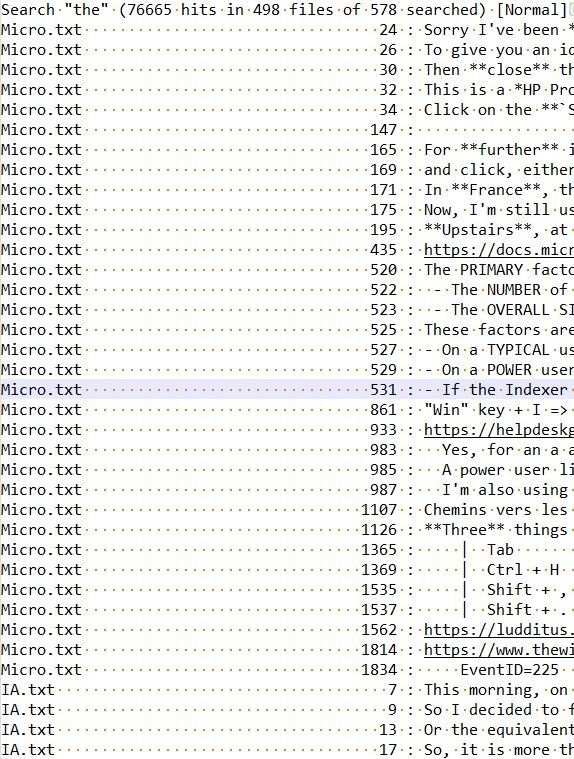
Voila !
Best Regards,
guy038
-
-
 G guy038 referenced this topic
-
Hi, All,
From the @pellelin’s post, here is an improvement of my previous post : I now added the complete path of each file , followed with a
\character and the file name !
Once any
Search Resultspanel is displayed :-
Hit the
Ctrl + Ashortcut -
Hit the
Ctrl + Cshortcut -
Open a new tab (
Ctrl + N) -
Paste the
Search Resultscontents in this new tab (Ctrl + V) -
Run the option
Edit > Line operations > Reverse line order( IMPORTANT ) -
Now, open the Replace dialog (
Ctrl + H) -
Uncheck all box options
-
FIND
(?-si)^\tLine\x20+(\d+)(?=(?s:.+?)^\x20\x20(\u:.*\\.+)(?=\x20\())|^\x20\x20\u.+\R -
REPLACE
?2\2\t\1\t
-
-
Check the
Wrap aroundoption -
Select the
Regular expressionsearch mode -
Click on the
Replace Allbutton -
Now, re-run the
Edit > Line operations > Reverse line orderoption ( IMPORTANT ) -
Finally, save this new tab for future study within N++ or Excel !
Now, @pellelin, if you don’t have already the
Columns++plugin installed in your configuration, I kindly advice you to install it !-
After installation of this plugin, close and re-open Notepad++
-
First, run the
Plugins > Columns++ > Elastic tabstopsoption -
Then run the
Plugins > Columns++ > Convert tabs to spacesoption -
Now, in order to right-aligned the line numbers, do the following regex replacement :
-
FIND
(\d+)(\x20*)(?=\x20:\x20) -
REPLACE
\2\1
-
With the same parameters, in the
Replacedialog, than above !
For example, I did a search of the word
the, whatever its case, inNormalmode, on any.txtfile of anUSBkeySearch "the" (77312 hits in 507 files of 590 searched) [Normal]I got an INPUT file of
51,5544lines for about10,2 MbAnd, after the above process :
-
Reverse line order
-
Regex Replacement
-
Reverse line order
Which took
82s, I got an OUTPUT file of51,047lines, for about12,2 Mb, with Complete file path, Line number and Text, all aligned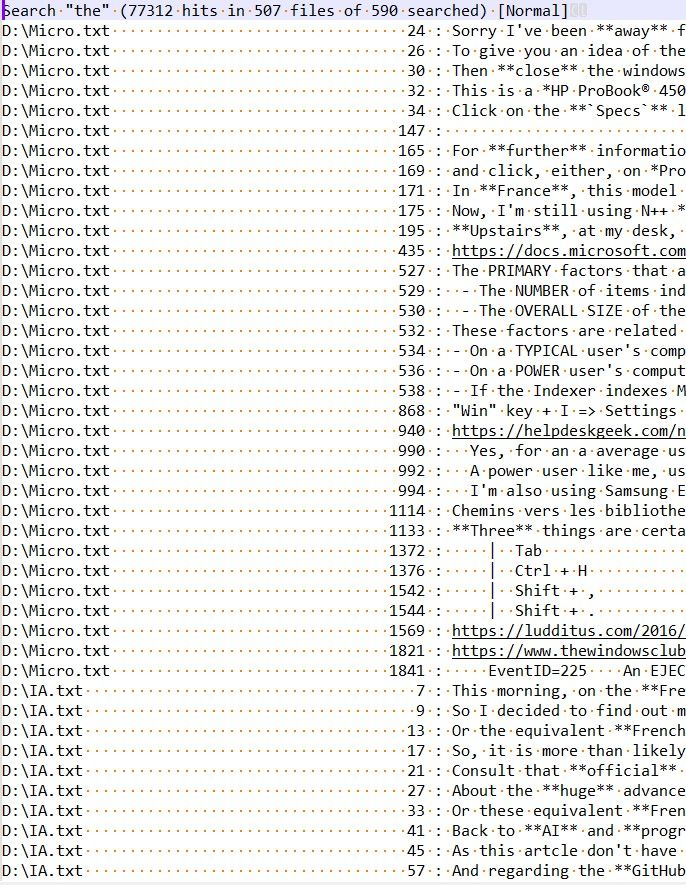
Best Regards,
guy038
P.S. :
In this version, I didn’t report the number of hits. If this information matters too, just ask me about it !
-
Hello! It looks like you're interested in this conversation, but you don't have an account yet.
Getting fed up of having to scroll through the same posts each visit? When you register for an account, you'll always come back to exactly where you were before, and choose to be notified of new replies (either via email, or push notification). You'll also be able to save bookmarks and upvote posts to show your appreciation to other community members.
With your input, this post could be even better 💗
Register Login